
How to Remove Silence, Pauses, and Filler Words in Premiere Pro
A direct guide to cutting dead air, pauses, filler words, repeated takes, and restarts in Premiere Pro without damaging the speaker’s timing.

How to Remove Silence, Pauses, and Filler Words in Premiere Pro
AI-assisted workflows inside Premiere ProDead air is easy to spot. The harder part is knowing whether a pause is useless, whether an “um” should stay, or whether two similar sentences are actually repeated takes.
Premiere Pro can handle basic text and pause deletion. Creator Mode is useful when you want the first pass to include the meaning of the transcript, not only the gaps in the waveform.
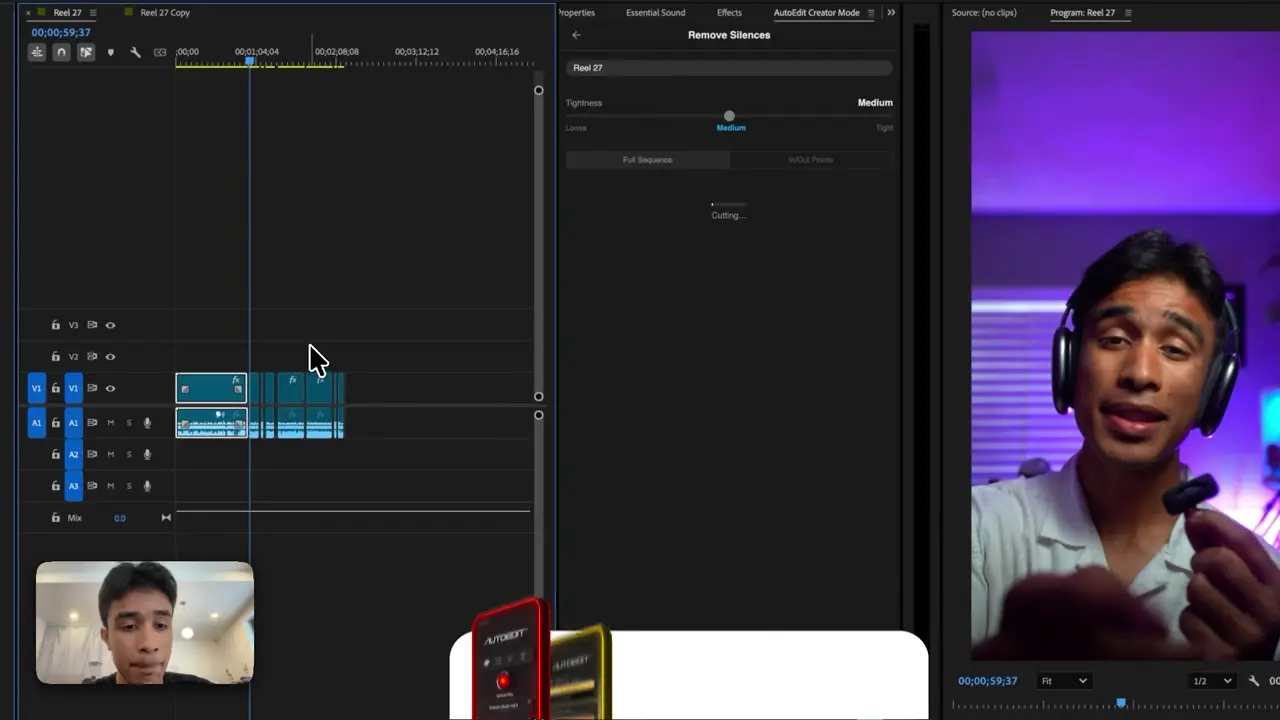
October 2026 update: the Silence Cutter tutorial below shows the current editable pause-removal pass inside Premiere Pro. Preview the decisions and keep breaths or pauses that help the delivery sound natural.
Quick Answer
You can remove silence and filler words in Premiere Pro with Text-Based Editing or a silence-remover plugin. AutoEdit Creator Mode adds transcript context, so it can also help find repeated sentences, restarts, and weak takes. Always work on a duplicate sequence and keep intentional pauses that make the speaker sound natural.
Can Premiere Pro remove silence by itself?
Yes. Text-Based Editing can detect pauses and filler words in a transcript and lets you bulk-delete selected results. That is useful for mechanical cleanup and does not require claiming Premiere lacks a native option.
What does a silence-remover plugin add?
A basic silence cutter saves time setting cut points around quiet sections. Creator Mode can go beyond quiet audio by reading what was said and helping find restarts, repeated sentences, bad takes, and filler words across the spoken edit.
How to remove silence and filler words safely
1. Duplicate the sequence
Keep the untouched assembly available before making a large group of cuts.
2. Transcribe the dialogue
Check names, slang, product terms, and sections where speakers talk over one another.
3. Set a conservative silence pass
Remove obvious dead air first instead of crushing every breath and pause.
4. Review filler words in context
Delete fillers that interrupt the sentence, but keep the ones that make the speaker sound human or preserve timing.
5. Find repeats and restarts
Use Creator Mode to compare similar lines and keep the take with the clearest delivery.
6. Watch the whole cut
Listen for clipped words, jumpy breaths, broken music, bad ripple edits, and pauses that now feel too short.
How much silence should you remove?
There is no single number for every speaker. Fast short-form content can use tighter gaps, while tutorials, interviews, and emotional stories usually need more breathing room. Start conservative and tighten only the sections that drag.
Should you remove every filler word?
No. Remove fillers that block clarity or come from a restart. Keep them when the sentence sounds unnatural without them, when they bridge an edit, or when the speaker’s personality matters more than perfect delivery.
How are repeated takes different from silence?
Silence detection finds quiet time. It cannot know that two sentences make the same point. Transcript-led editing helps compare those takes, but you still watch the face, delivery, continuity, and timing before choosing one.
Which footage benefits most?
- Talking-head YouTube videos
- Course and tutorial recordings
- Solo podcasts and interviews
- UGC product videos with several hook takes
- Business videos recorded from a script
Tips
- Start with conservative silence settings.
- Read the sentence before removing a filler word.
- Keep the original assembly on a separate sequence.
Common mistakes
- Deleting every breath and making the speaker sound rushed.
- Treating two similar sentences as identical without watching both takes.
- Forgetting that ripple cuts can move graphics, music, and B-roll.
Try the workflow
Free tools for this article
Use the most relevant free tool for the task, then continue with the rest of your edit.
 Free Podcast Name GeneratorGenerate podcast-name directions that fit the topic, host, and audience.
Video walkthrough
How to Use Claude AI to Automatically Edit in Premiere Pro
How to Automatically Remove Silence in Premiere Pro
Continue in Premiere Pro
Explore AutoEdit Creator Mode
Build an editable starting point, then keep creative control of the timeline.
Explore AutoEdit Creator ModeFrequently asked questions
How do I automatically remove silence in Premiere Pro?
Use Premiere Pro Text-Based Editing for pause detection or use AutoEdit Silence Cutter on a duplicate sequence, then review every cut.
Can Premiere Pro remove filler words?
Yes. Text-Based Editing can find and delete selected filler words from the transcript.
Can AutoEdit remove repeated takes?
Yes. Creator Mode can use the transcript to find repeated sentences and help keep the stronger take on the Premiere timeline.
Should I remove every pause from a YouTube video?
No. Remove dead air that slows the point, but keep pauses used for emphasis, comprehension, emotion, or a natural breath.
Does silence removal work in any language?
Yes. AutoEdit works with any spoken language. Check the transcript for names, slang, and brand terms before applying the full edit.
Sources and verification
External product claims were checked against these first-party sources.
AutoEdit Content Creator Mode covers the transcript-led cleanup and rough-cut tools described here.
Free AutoEdit Plugin Tools lists the current free utilities available for Premiere Pro editors.
Adobe Text-Based Editing documents the native pause and filler-word features referenced above.
AutoEdit organic search research is the supporting AutoEdit article library for related creator-editing topics.