
How to Use Claude AI in Premiere Pro: A Real Editing Tutorial
A straight Premiere Pro guide for editors who want to use Claude to analyze spoken footage and build a reviewable Premiere Pro rough cut, with the actual plugin, timeline, and cuts explained in plain English.

How to Use Claude AI in Premiere Pro: A Real Editing Tutorial
AI-assisted workflows inside Premiere ProMost people asking about claude premiere pro are not looking for another chatbot. They want to know whether Claude can put real cuts on a Premiere Pro timeline.
The easiest way to think about it is this: Claude is the handyman and Premiere Pro has the tools. AutoEdit brings Claude into Premiere, so it can read the transcript, help with the rough cut, and leave you with a normal timeline you can keep editing.
September 2026 update: the free Premiere Pro plugin walkthrough below demonstrates current tools for effect search, image imports, silence cleanup, and editable first-pass workflows. Check each tool against the specific job in this guide.
Quick Answer
To use Claude AI in Premiere Pro, open AutoEdit Creator Mode, prepare a duplicate sequence, remove obvious silence, and run Chat Edit on the spoken footage. Claude can analyze the transcript, flag repeated or weak takes, and propose cuts. Preview every decision before applying it to the editable timeline.
How does Claude work inside Premiere Pro?
Claude is the handyman and Premiere Pro has the tools. AutoEdit brings Claude into Premiere, shows it the transcript, and lets it use the plugin to mark bad takes, cut repeats, and put the approved changes on your sequence.
This works best for talking-head videos, tutorials, interviews, and podcasts where the dialogue drives the edit.
What should you prepare first?
- Import and synchronize the intended footage.
- Duplicate the working sequence.
- Confirm the dialogue is clear enough to transcribe.
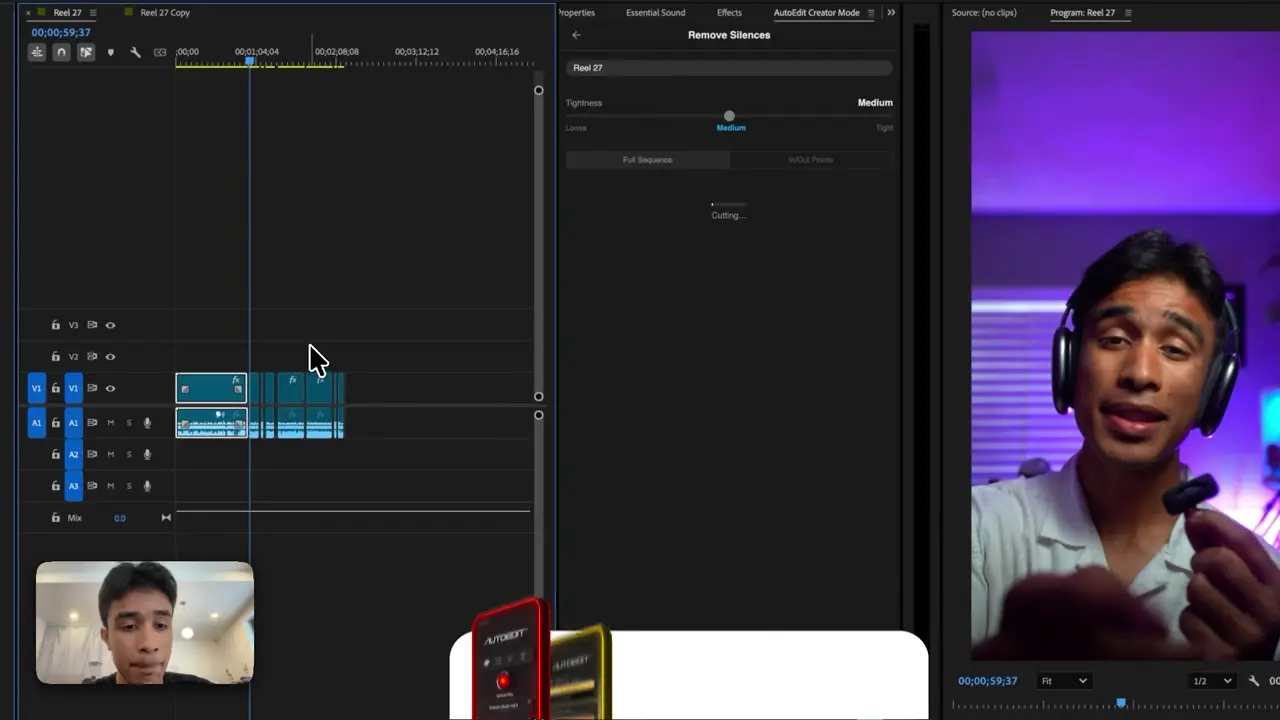
- Remove obvious dead air before the deeper transcript pass when appropriate.
Step by step: how to use Claude in Premiere Pro
1. Open Creator Mode
In Premiere Pro, open Window, choose Extensions, and select AutoEdit Creator Mode.
2. Choose Chat Edit
Select the sequence with your talking footage and open Claude Creator Mode.
3. Give one clear instruction
Start with a narrow request such as flag repeated takes or remove filler words.
4. Inspect the transcript decisions
Click proposed segments, compare alternatives, and protect lines that carry meaning or required information.
5. Apply and review
Apply approved changes to the duplicate sequence, then complete the normal picture and sound review.
What should you ask Claude to do?
- Identify repeated sentences.
- Flag restarts and obvious weak takes.
- Remove selected filler words without changing meaning.
- Find sections that answer a defined viewer question.
- Keep required product claims, teaching steps, or calls to action.
What still requires an editor?
The editor still decides which performance feels strongest, whether a pause is intentional, how B-roll supports the words, and when graphics, music, color, and sound should change. Claude can accelerate transcript reasoning; it cannot guarantee the final creative decision.
What result should you expect?
Expect a dialogue rough cut on a normal Premiere Pro sequence—not a finished upload. The repeats, dead air, or bad takes you approved are cut, and you can still move, trim, or restore anything on the timeline.
Tips
- Work on a duplicate sequence.
- Ask for one clear edit at a time.
- Watch the cut and count how much you actually have to fix.
Common mistakes
- Treating the rough draft like a finished edit.
- Using transcript tools on clips that need visual selects.
- Exporting without watching every automatic cut.
Try the workflow
Free tools for this article
Use the most relevant free tool for the task, then continue with the rest of your edit.
 Free Podcast Name GeneratorGenerate podcast-name directions that fit the topic, host, and audience.Free Podcast Show Notes GeneratorTurn a podcast transcript into structured show notes, takeaways, and chapter ideas.
Video walkthrough
How to Use Claude AI to Automatically Edit in Premiere Pro
6 Free Premiere Pro Plugins That Actually Save You Time
Continue in Premiere Pro
Explore AutoEdit Creator Mode
Build an editable starting point, then keep creative control of the timeline.
Explore AutoEdit Creator ModeFrequently asked questions
Can I use Claude directly inside Premiere Pro?
Yes, through a Premiere Pro integration such as AutoEdit Creator Mode. An ordinary Claude browser chat does not directly edit the active timeline.
What footage works best with Claude in Premiere Pro?
Dialogue-led footage works best because Claude can reason over the transcript. Talking-head videos, interviews, tutorials, and podcasts are stronger fits than silent visual montages.
Does Claude automatically choose every best take?
Claude can flag repeats and weak takes, but the editor should preview performance, context, timing, and visual continuity before applying the proposed cuts.
Should I remove silence before Chat Edit?
Removing obvious dead air first can shorten the material analyzed, but preserve intentional pauses and always work on a duplicate sequence.
Does this workflow replace final editing?
No. Story, pacing, B-roll, graphics, sound, color, factual review, rights, and export quality still require an editor.
Sources and verification
External product claims were checked against these first-party sources.
How to Use Claude AI to Automatically Edit in Premiere Pro demonstrates Claude-powered editing inside a working Premiere Pro project.
AutoEdit Creator Mode provides the current Creator Mode download and product details.
Adobe Premiere Pro Text-Based Editing documents Adobe’s native transcript-based editing features.